Command-Line 103 : Hidden and executable files
Hidden files 🕶️
Don't believe everything you see!
On a linux filesystem, every file and directory whose name starts with a dot . will be hidden.
Which means that such files will not be displayed when using a regular ls, ever.
But you can actually see those hidden files and directories using ls -a for “all” though.
This command will also display a new directory : a single dot . which means “the current directory” in Linux and also another one with two dots .. which means “the directory above this one in the filesystem tree structure”!
Observe the difference between :
$> ls .
$> ls -a .
$> ls ..
Advanced ls
ls is already an invaluable tool, but it can give you even more useful information about files and directories!
Using ls -l (that's a L as in leopard) on the challenges/command_line_101 directory will print the following list :
$> ls -l challenges/command_line_101/
total 28
drwxrwxr-x    3 root     root          4096 Jan 11 21:59 .
drwxr-xr-x    3 root     root          4096 Jan 11 21:59 ..
-rw-rw-r--    1 root     root            96 Jan 11 21:59 .challenge_4
-rw-rw-r--    1 root     root           276 Jan 11 21:59 challenge5.sh
-rw-rw-r--    1 root     root           111 Jan  9 15:44 challenge_0.txt
-rw-rw-r--    1 root     root            77 Jan  9 20:57 challenge_1.txt
drwxrwxr-x    3 root     root          4096 Jan 11 21:58 challenge_2
We’re going to leave some of the information printed in this list for another class, but you should already recognize the file and directories names usually displayed by ls!
The first line “total 28” means that this directory uses a total of 28 filesystem “blocks” (but don't bother too much with blocks right now, okay?).
A block is simply a way of counting space on a Linux filesystem, a bit like the more commonly represented Mega octets and Kilo octets.
Note: For the sake of completion, a block is equivalent to 8KB => 8000 bytes. But to be honest, maybe don't bother remembering that right now.
The hours and dates are the last modification date for each item and the number printed on the left of the month (Jan->January in this example) is the file’s size in bytes.
Also keep in mind that in this list, lines starting with d are directories! The ones starting with - are files.
Executing scripts 📜
About scripts
What are scripts, you’re wondering?
Scripts are files containing commands and logic which can be used to automatize mostly any task you do on a computer!
Linux and other Operating Systems in general are full of scripts, some of them are used to install software, update files, make sure programs are not outdated, update the time, move log files, display alerts etc…
Executing your first script
In order to run a script, you just need to write its path in your terminal.
For instance, a script is located in /usr/bin/foxsay on term.hack.courses.
You could type the following command in the terminal to run this script :
/usr/bin/foxsay helloIf you typed the command correctly, you should be greeted by :
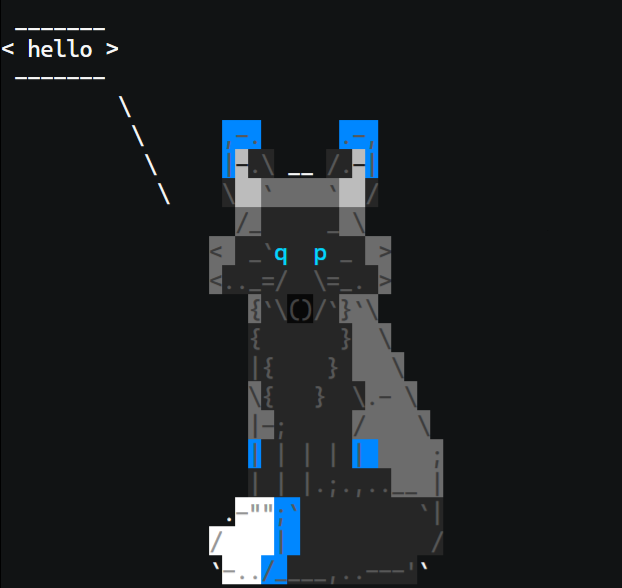
Congrats, you just ran your first script (and far from the last)!
Now, this is not the only way to run a script.
The path you used here is what is called an absolute path. An absolute path starts from the root of your filesystem ("/").
On a Linux machine, everything starts with the "/" location. Then, you might have other directories such as "/bin", etc...
For instance, the existence of the absolute path /usr/bin/foxsay implies that the following structure exists on the Linux filesystem :
/
  usr
    bin
      foxsay
But you can also run a script using its relative path, a relative path is, contrary to an absolute path, a path which does not start with “/”.
To run a script within the directory you are currently in, type “./” followed by the script name.
For instance, move inside the /usr/bin directory using cd /usr/bin.
Now, use the following syntax to run the same script again :
./foxsay helloHint : Don’t forget to type cd to go back to your home directory after!
Now that you're done with the theory, time for some practice! Finish the challenges 6 and 7 on ex.hack.courses/q/linux101 before moving on to the quizz section to validate your flags!
