Command-Line 101 : The Basics
Introduction 📖
Welcome to this command-line class!
In this entry level course you will learn how to use a terminal and navigate through a Linux filesystem.
You will be provided with real Linux terminals in the practice sections of this class (don't worry, we'll get to that a bit later), but you can also follow along the theorical content with https://term.hack.courses open alongside if you want to try out the commands I'm mentioning in a real Linux environment.
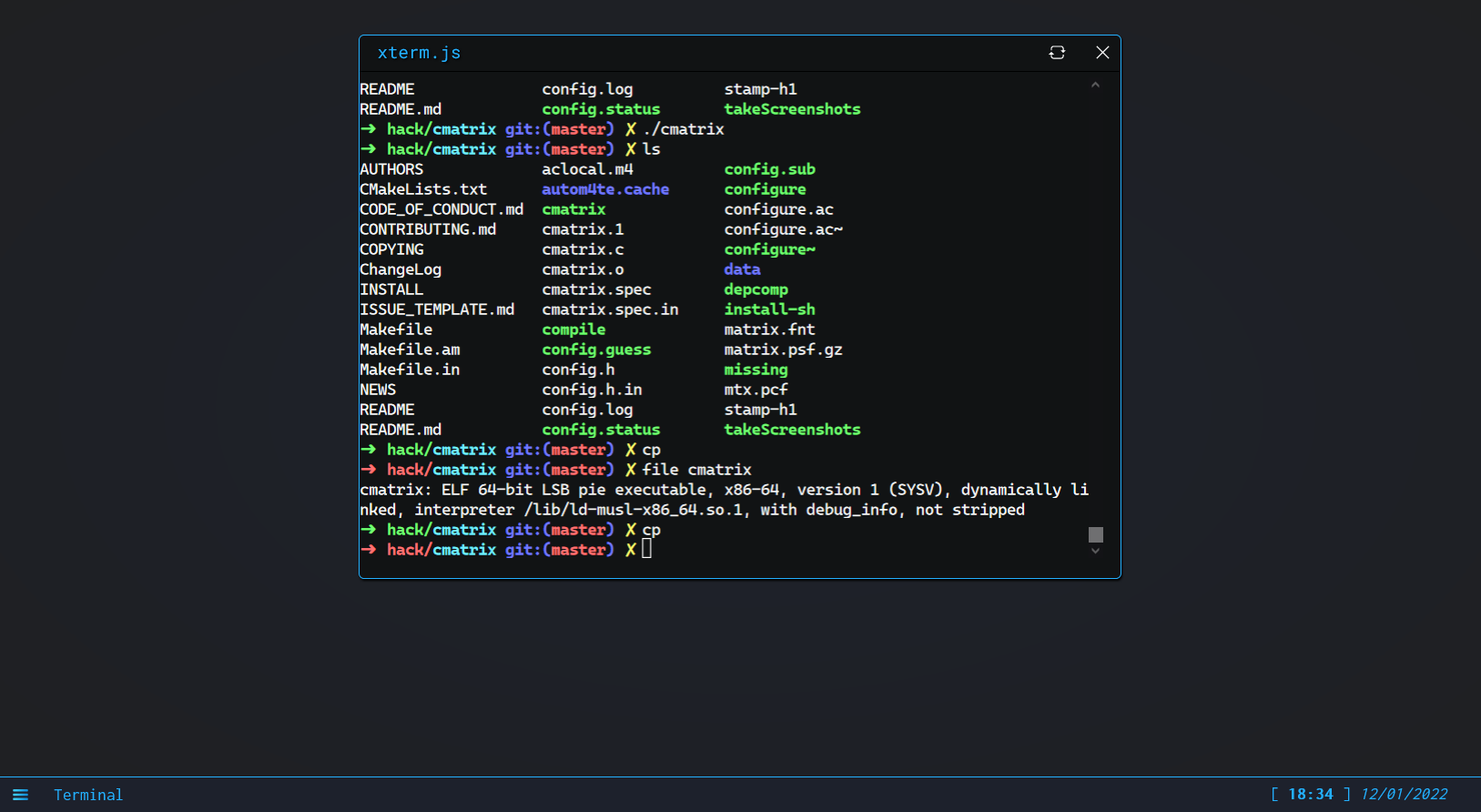
What’s command-line 💻?
Let's start with the basics of command-line, what is it actually?
A command is an instruction (or a set of instructions) given to a machine.
A command-line is (by extension) a textual line containing one or multiple commands destined for a computer.
A command-line interface (or CLI) is an interface which is made to be interacted with using commands-lines, contrary to a graphical user interface (or GUI).
For instance, apps on your phone have GUIs, the browser on your computer has a GUI, but programs you might use in cmd.exe, powershell.exe or in Linux or Mac OS's terminals might be usable only with specific commands!
Commands are generally typed in a piece of software called a command-line interpreter (or shell) for a computer to do specific actions, there is a difference between a terminal (the window you are typing your commands in) and a shell (the piece software that is actually trying to understand and do something your commands).
Note : A remarkably high amount of people don't really know the difference between a terminal and a shell, you're already a step ahead of them now 😉.
Let's get back to our commands: a command usually looks like this :
$> open filename.txtNote : The characters “$>” here are not part of the command, they represent the prompt usually displayed by shells to let the user know they can type a new command.
Oh also, open is a command that only works in certain specific contexts, it might not work on your own Linux terminal, but it's an easy to understand example ;).
What are the existing commands?
The commands you can possibly type depends on the command-line interpreter you use, and more generally on the Operating System you’re working on.
Windows machines used to understand commands based on DOS, nowadays they also use PowerShell’s syntaxes, Linux and “unix-like” machines (Ubuntu, MacOS) use commands similar to the Unix Shell, this is the type of commands we’re going to cover during this class.
Note : If you do not understand precisely what Linux, GNU/Linux and Unix are yet, it’s okay, it’s not mandatory for this course.
Why do we (still) use command-line?
Whatever you can do with a graphical user interface, you can do with command-line, also most of the time command-line is much more efficient and lightweight! But don’t take what I tell you for granted, you’ll soon be able to try it for yourself.
Also, commands can be chained and logic can be added to their execution, which allows the automation of an almost infinity of tasks!
Hands-on 🤜!
Let’s start working on your first commands with a little bit of practice!
You will be guided through some exercises, head over https://ex.hack.courses/q/linux101 for your first experimentations! Make sure you come back here once you're done with the challenges 0 and 1.
Note: Once you've done what an exercise is expecting of you, you will be given a flag, which is a token of your completion, a character string you can copy/paste or select in the course's web interface in the quizz section after this one. A classic flag will look like this :
flag{something}